Alerts · Beginner
TradingView Alerts Manager: View, Pause, Edit, and Clean Up Your Alerts
Many people are excited when they first set alerts in TradingView: one for a price level, one for an RSI condition, another for a trend-line breakout. A few days later the phone keeps ringing, and you can't recall why an alert existed in the first place—if an alert fires and you can't remember why it exists, it's due for a review.
Bottom Line First: Alerts Need Regular Organizing—More Isn't Better
The value of TradingView alerts is freeing you from staring at the screen, but an alert isn't "set and forget". The market, chart structure, and focus all change—last week's important price alert may be meaningless this week; a test indicator alert may only create noise.
Too few alerts may miss conditions; too many drown you in notifications. The value of the Alerts Manager is to let you manage alerts, not be managed by them.
A useful alert list should satisfy:
- You know why each alert exists;
- When an alert fires, you know what to check next;
- Expired, duplicate, and invalid alerts are cleaned up regularly.
More alerts isn't more professional; being useful is letting you read the chart more clearly.

What Is the Alerts Manager?
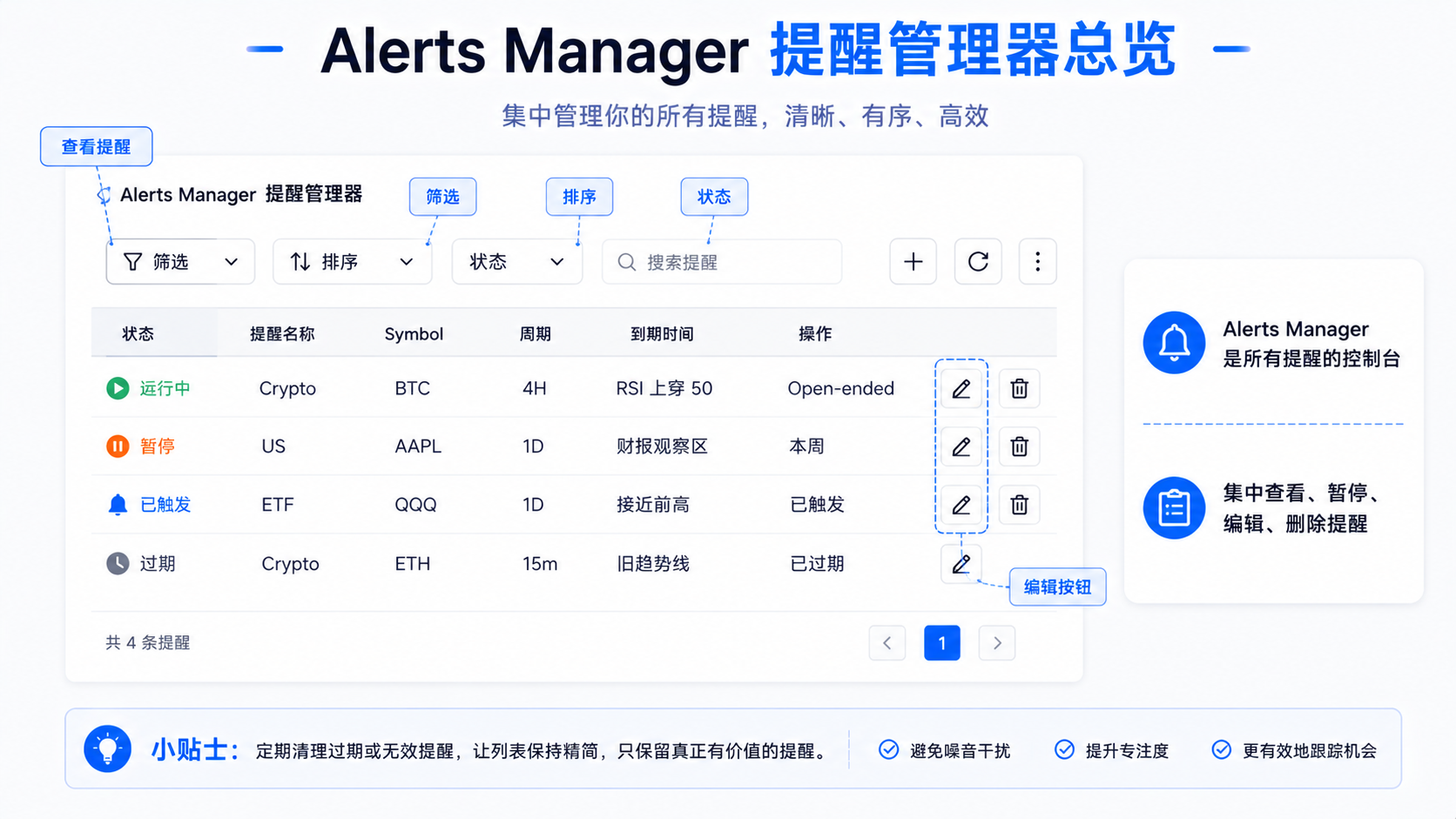
The Alerts Manager is TradingView's alert management center. The price, indicator, drawing, and strategy alerts you create can usually be viewed and managed here together—not to create more alerts, but to check whether they're still valid.
In the Alerts Manager you can:
- View all current alerts;
- See which are running, paused, or triggered;
- Find expired or soon-to-expire alerts;
- Edit, pause, resume, and delete alerts;
- Check whether alert names and Messages are clear.
If you've set many alerts but never opened the Alerts Manager, the alert system will eventually get out of control.
How to View, Sort, and Filter Alerts
With few alerts you can rely on memory; past a few dozen, viewing, sorting, and filtering matter a lot.
Viewing Alerts: Know How Many You've Created
After opening the Alerts Manager, browse through first:
- How many there are now;
- Which are running, triggered, or paused;
- Which are near expiry, have unreadable names, or look like duplicates.
This step is like tidying your desktop: see where the mess comes from first, then delete and edit.
Sorting Alerts: Find What Needs Handling Most
Sort by creation time, expiry time, trigger status, symbol, market type, name, and so on. The most practical is to look at soon-to-expire and triggered alerts first.
Filtering Alerts: Don't View Everything at Once
Handle in groups—e.g. only certain stocks, crypto, a specific symbol, active/paused/triggered, or a certain strategy/indicator's alerts. Handle one kind of problem at a time to avoid making the mess worse.
How to Pause, Resume, Edit, and Delete Alerts
How to Pause an Alert
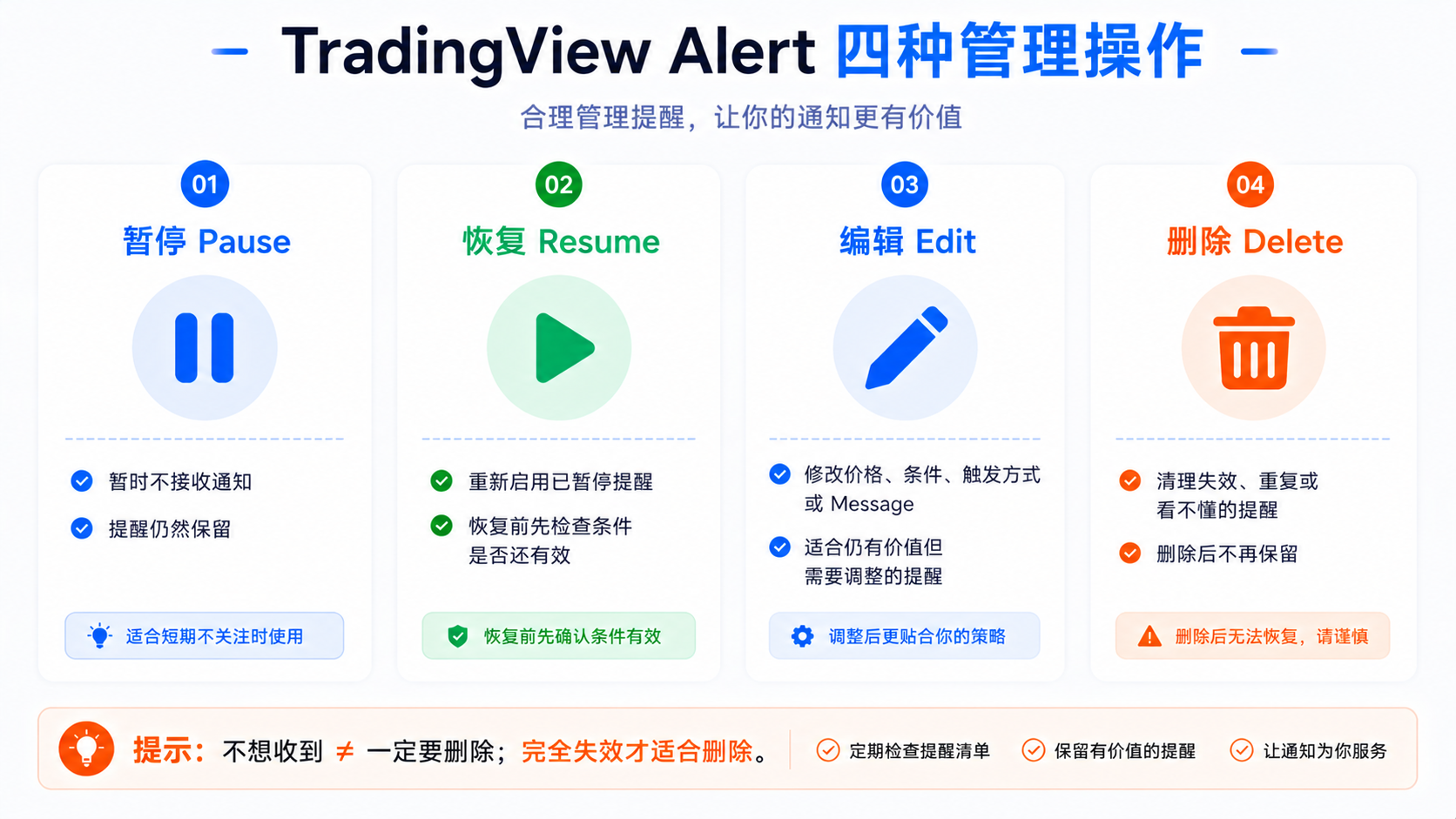
Pausing suits "don't want to receive for now, but don't want to delete yet", for example:
- Not watching a certain market for now;
- Not trading or reviewing this week;
- A condition is temporarily unimportant;
- You want to read charts quietly;
- An alert fires frequently and needs a pause.
Pausing isn't deleting: notifications stop, but the alert stays in the list and can be resumed when needed. For example a pre-earnings price alert—after earnings are out and you want to review next week, pause it instead of deleting right away.
But don't let the paused area become a junk pile either; regularly clean up paused items that are completely useless.
How to Resume an Alert
Resuming suits a condition you paused before and now need to monitor again. Before resuming, check:
- Whether the price has moved far from the alert area;
- Whether the condition still fits the current chart;
- Whether the timeframe and indicator parameters are correct;
- Whether the drawing objects still exist;
- Whether the Message is still understandable.
Resuming an already-invalid old alert will likely keep creating noise.
How to Edit an Alert
Editing suits conditions that are roughly still useful but need adjustment, for example:
- Updating the price level;
- Changing trigger from Every Time to Once Per Bar Close;
- Extending the expiration;
- Adding a Message;
- Adjusting notification methods;
- Re-confirming the condition after indicator parameters or the chart timeframe change.
When editing, don't just change one price—also check that the Symbol, timeframe, Condition, Operator, Trigger, Expiration, and Message are consistent. Many alerts are unhelpful because the trigger method wasn't thought through from the start.
How to Delete an Alert
Deleting suits content with no value left, for example:
- The price expired long ago;
- You no longer follow the instrument;
- The drawing is invalid, the strategy is disabled, or indicator testing is done;
- Too many duplicate alerts;
- You wouldn't take any review action even if it fired.
Deleting invalid alerts is the start of a cleaner list. If you can't answer "why does it exist", consider deleting it.
Why Write Clear Alert Names and Messages?
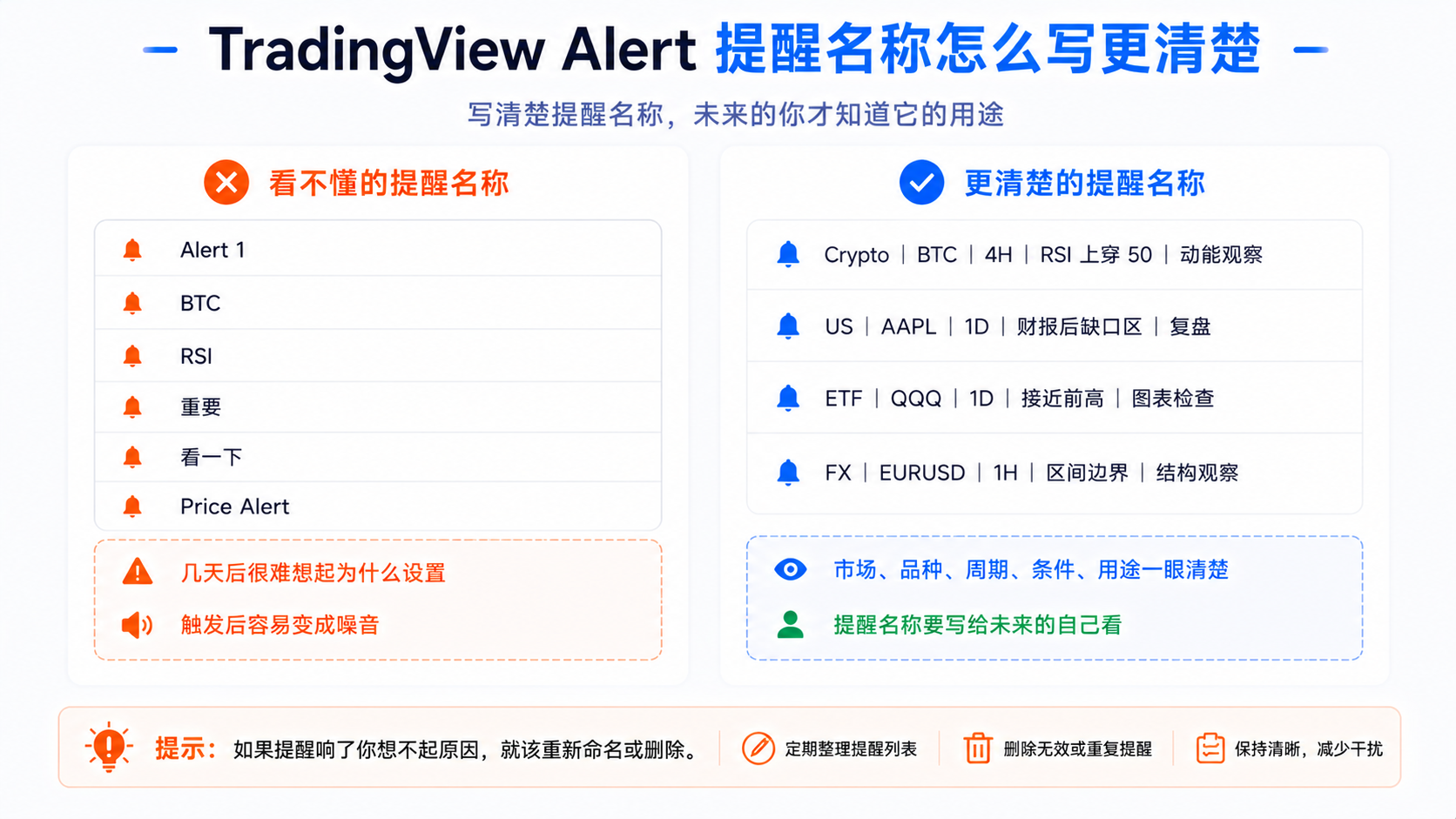
A list gets out of control often because names are too casual, like Alert 1, BTC, RSI, Important—when the alert fires you have no idea what to do.
A good name should at least include: symbol, timeframe, condition, purpose. For example:
BTC 1H RSI crossing above 50 | momentum watchAAPL daily entering pre-earnings watch zone | review only
The Message should also state the next step, not just "it hit". Write something like: price enters the daily rectangle area, check volume and news, not a buy/sell signal. The Message's job is to preserve your original thinking so you can restore context when the alert fires days later.
Which Alerts Should You Delete?
1. Expired Price Alerts
You set an alert at 100, and the price is now at 130 or dropped to 80; if that level has lost analytical meaning, delete it.
2. Old Strategy Alerts
An unused Pine strategy alert still firing is dangerous—you may have forgotten the logic yet be influenced emotionally by the notification.
3. Duplicate-Condition Alerts
Setting several for the same thing (greater than 70000, Crossing 70000, a horizontal line, a range)—keep the clearest one.
4. Invalid Drawing Alerts
The trend line broke long ago, the rectangle no longer matters, the old channel is invalid—keeping them is pointless.
5. Alerts With Names You Can't Read
If you open it and still don't know why it exists, rename or delete it.
6. Alerts That Only Create Anxiety
Every time it fires you want to act on impulse but have no clear review purpose—it may be interfering rather than helping.
An Organizing Method: Name by Market, Timeframe, and Purpose
Naming by Market
For example: US | AAPL | 1D | earnings watch zone, Crypto | BTC | 4H | trend-line breakout, FX | EURUSD | 1H | range boundary
Naming by Timeframe
BTC | 15m | RSI crossing above 50 and BTC | 1D | RSI crossing above 50 are completely different things—always write the timeframe into the name.
Naming by Purpose
The purpose can be: review, news check, indicator test, trend-line watch, earnings alert, strategy test, price-area watch, and so on. For example US | NVDA | 1D | near prior high | review is far clearer than "NVDA Alert".
A Practical Alert-Cleanup Flow
Spend about 10 minutes each week:
- Open the Alerts Manager, and first see whether the total count has grown noticeably.
- Handle triggered alerts: keep or not, reviewed or not, whether the condition is still valid.
- Handle soon-to-expire alerts: extend, delete, make open-ended, or reset the condition.
- Clean up duplicate alerts: for the same instrument, timeframe, and condition, keep only the most useful one.
- Rename important alerts: Market | Symbol | Timeframe | Condition | Purpose.
- Delete completely invalid alerts: the cleaner the list, the more seriously important notifications are taken.
Suggested Alert Naming Templates
Use directly: Market | Symbol | Timeframe | Condition | Purpose
US | AAPL | 1D | price enters earnings gap zone | reviewCrypto | ETH | 4H | RSI crossing above 50 | momentum watchETF | QQQ | 1D | near prior-high area | chart checkFX | EURUSD | 1H | breaks below range floor | structure watchIndex | SPX | 1D | near weekly resistance | risk watch
Message example:
After the alert fires, go back to the chart to check price structure, volume, and news; not a buy/sell signal.
Such text looks wordy, but when the alert fires you need context, not stimulation.
Common Misconceptions: Why More Alerts Means More Mess
Misconception 1: Treating Alerts as Bookmarks
The list becomes "everything you once followed" rather than a currently useful monitoring system.
Misconception 2: Not Writing a Clear Message
When it fires you don't know the meaning, only adding anxiety.
Misconception 3: Not Deleting Old Alerts
The market has changed, and old alerts remind you of the wrong thing at the wrong time.
Misconception 4: Too Many Duplicate Alerts
Five alerts for the same area firing five times—over time you go numb to all alerts.
Misconception 5: Acting on Impulse When an Alert Fires
An alert only means the condition occurred; go back to the chart to check, don't act directly on the notification.
Summary: You Manage the Alerts, Not the Other Way Around
The Alerts Manager helps you regain control of the alert system. Creating is easy; maintaining matters—the market, drawings, and strategies all change, and without regular organizing, alerts turn from a tool into noise.
A good list should be clear, restrained, and purposeful: why each exists, what to check after it fires, when to delete it, and whether it still fits the current chart. If an alert fires and you can't recall why it exists, it's due for a review.
FAQ
What is the TradingView Alerts Manager?
The Alerts Manager is the alert management center for viewing, pausing, resuming, editing, and deleting created alerts. Price, indicator, drawing, and strategy alerts can be managed together, aiming to organize alerts and reduce useless notifications.
Can you pause TradingView alerts?
Yes. Pausing suits cases where you don't want to receive them for now but don't want to delete; a paused alert stays in the list and can be resumed when needed—check whether the condition is still valid before resuming.
Do you still need to keep triggered alerts?
Not necessarily. A one-time price alert can be deleted after firing; if it's still for long-term watching, edit and keep it. Don't let many triggered, invalid alerts pile up in the list.
How should you write a TradingView alert name?
State the market, symbol, timeframe, condition, and purpose, e.g. Crypto | BTC | 4H | RSI crossing above 50 | momentum watch. In the Message, state what to check after it fires.
What if I have too many alerts?
Open the Alerts Manager and filter triggered, paused, soon-to-expire, and duplicate items; delete expired prices, old strategies, and invalid drawings; rename and keep only alerts with a clear purpose.