Orders & Trading · Beginner
TradingView Order Types: Market, Limit, Stop, and Take Profit for Beginners
The first time you open the TradingView order panel and see Buy, Sell, Market, Limit, Stop, Stop Loss, and Take Profit, many people click confirm before understanding the execution logic—and the order goes out, but the fill price isn't what they expected. Understanding order types matters more than rushing to place an order.
Bottom Line First: Understand Order Types, Then Practice Placing Orders
TradingView can be used for Paper Trading and can also connect to some broker accounts. Whether simulated or real, the order-panel fields determine buy/sell direction, quantity, how it fills, whether stop-loss/take-profit is set, and whether the order fills at a price that may deviate from what you expect.
Beginners should practice with Paper Trading first and watch each order behavior once. The demo involves no real money; after connecting a broker, execution also depends on the broker, exchange, liquidity, and other rules. Official notes on extended hours also warn: volatility may be higher during extended sessions.
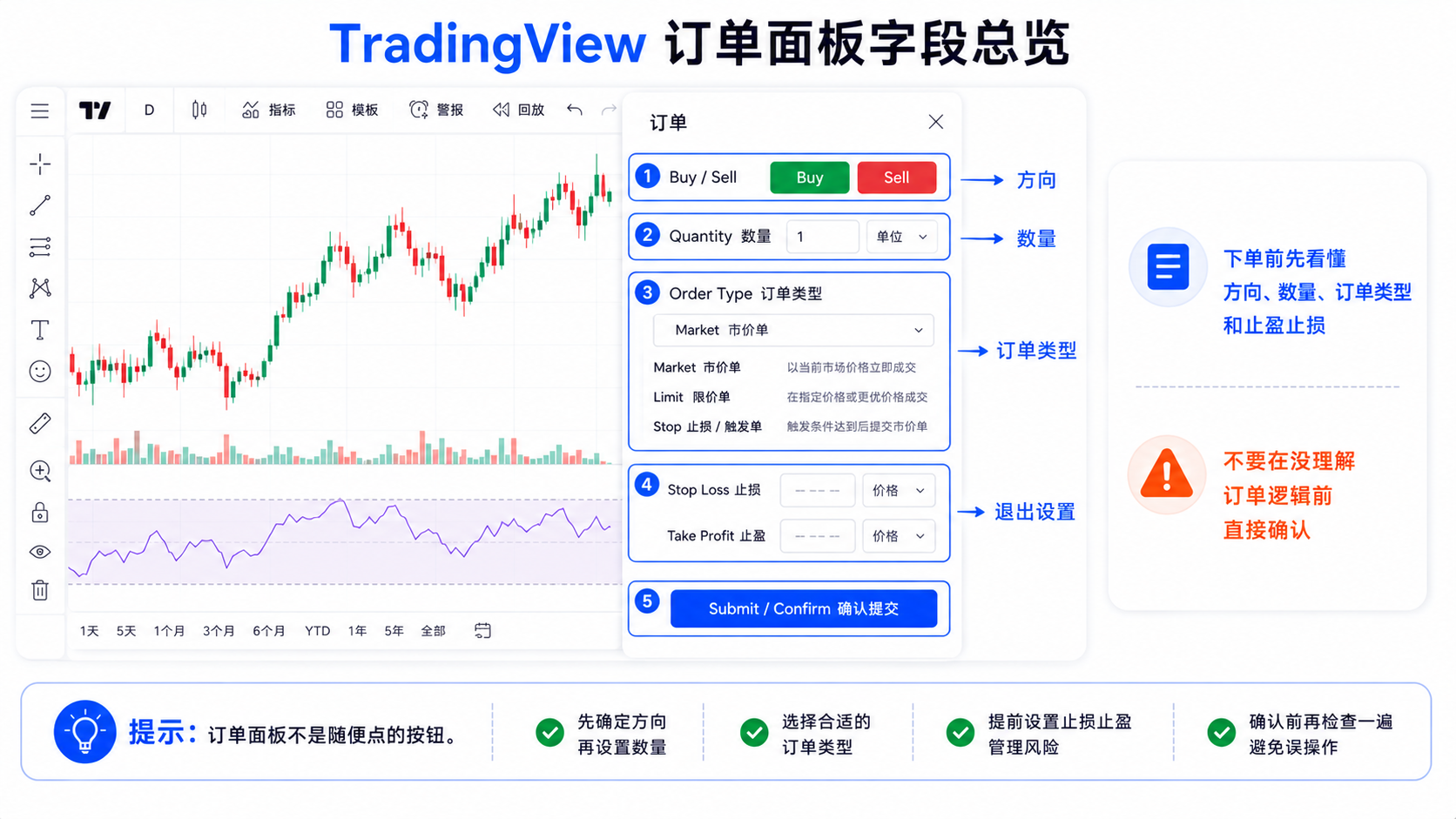
The Basic Makeup of the TradingView Order Panel
The panel may vary slightly by market, broker, and account type, but common fields include:
Buy / Sell
Buy is to buy, Sell is to sell. When you hold a position, distinguish whether you're opening a new position, closing, or reversing—don't just look at the button color, look at the order direction.
Quantity
It might be shares, units, crypto amount, forex units, futures contracts, and so on—the meaning varies by market. When practicing, use a very small quantity to get familiar with the flow.
Order Type
Common ones are Market, Limit, Stop, Stop Limit, and so on; the difference is in execution logic, not the button name.
Price / Limit Price / Stop Price
Limit Price mostly relates to limit orders, and Stop Price mostly relates to stop triggers or Stop orders—beginners most often fill in Limit and Stop the wrong way around.
Stop Loss / Take Profit
Stop-loss and take-profit are often used as bracket orders to protect a position. The docs note a bracket usually sets exit conditions around a position with two orders in opposite directions—but they are order logic, not a guarantee of the result.
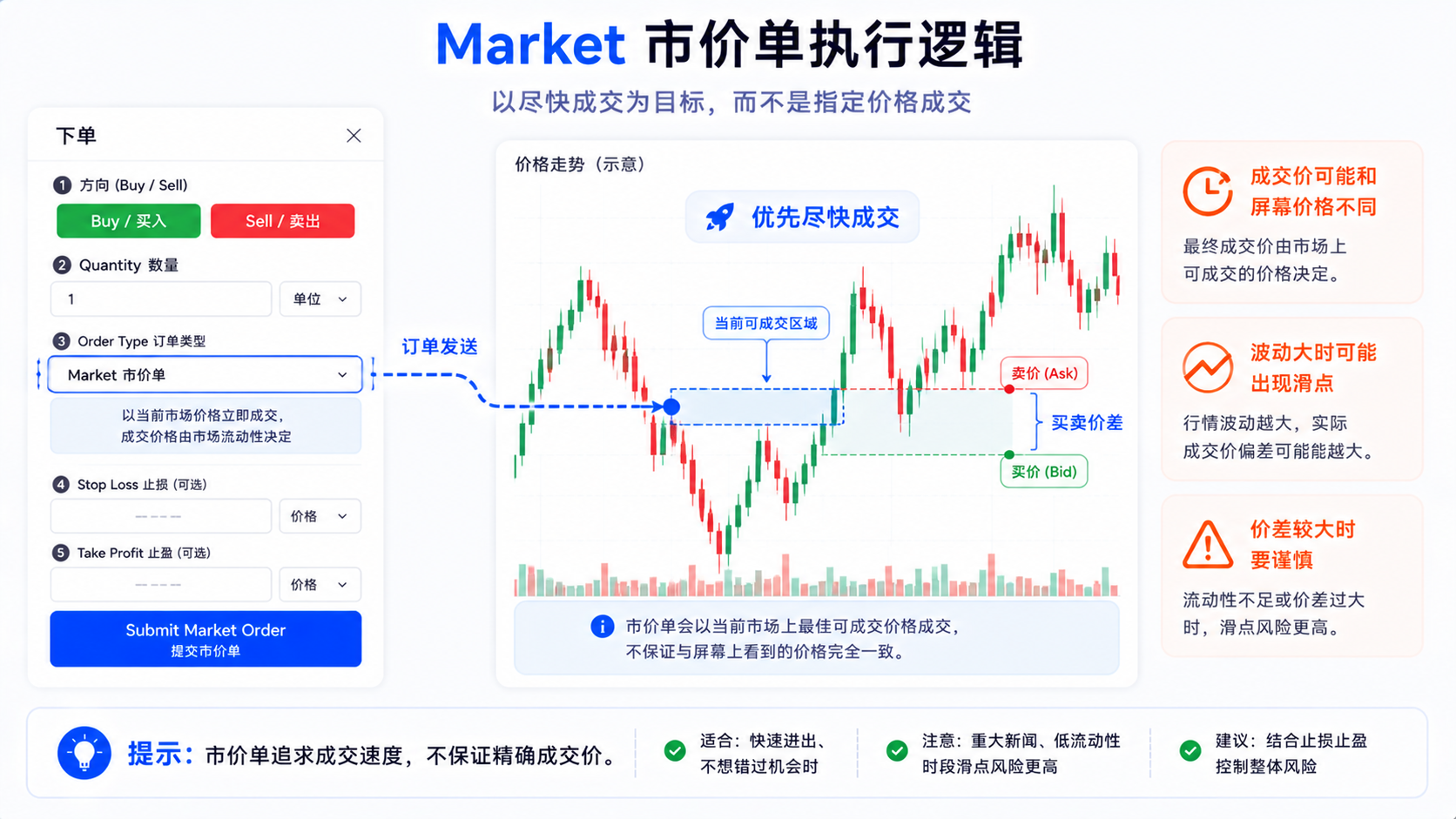
What Does a Market Order Mean?
A Market Order executes as soon as possible at the current available market price. The upside is speed; the downside is you can't lock in an exact fill price in advance.
When the market moves fast, spreads are wide, liquidity is low, during extended hours, on news releases, or with a large order, the fill price may differ from the chart price—this is slippage, not a platform fault. A market order can be understood as: prioritize the fill, price not guaranteed. This is the same real-world issue as the Slippage set in backtesting.
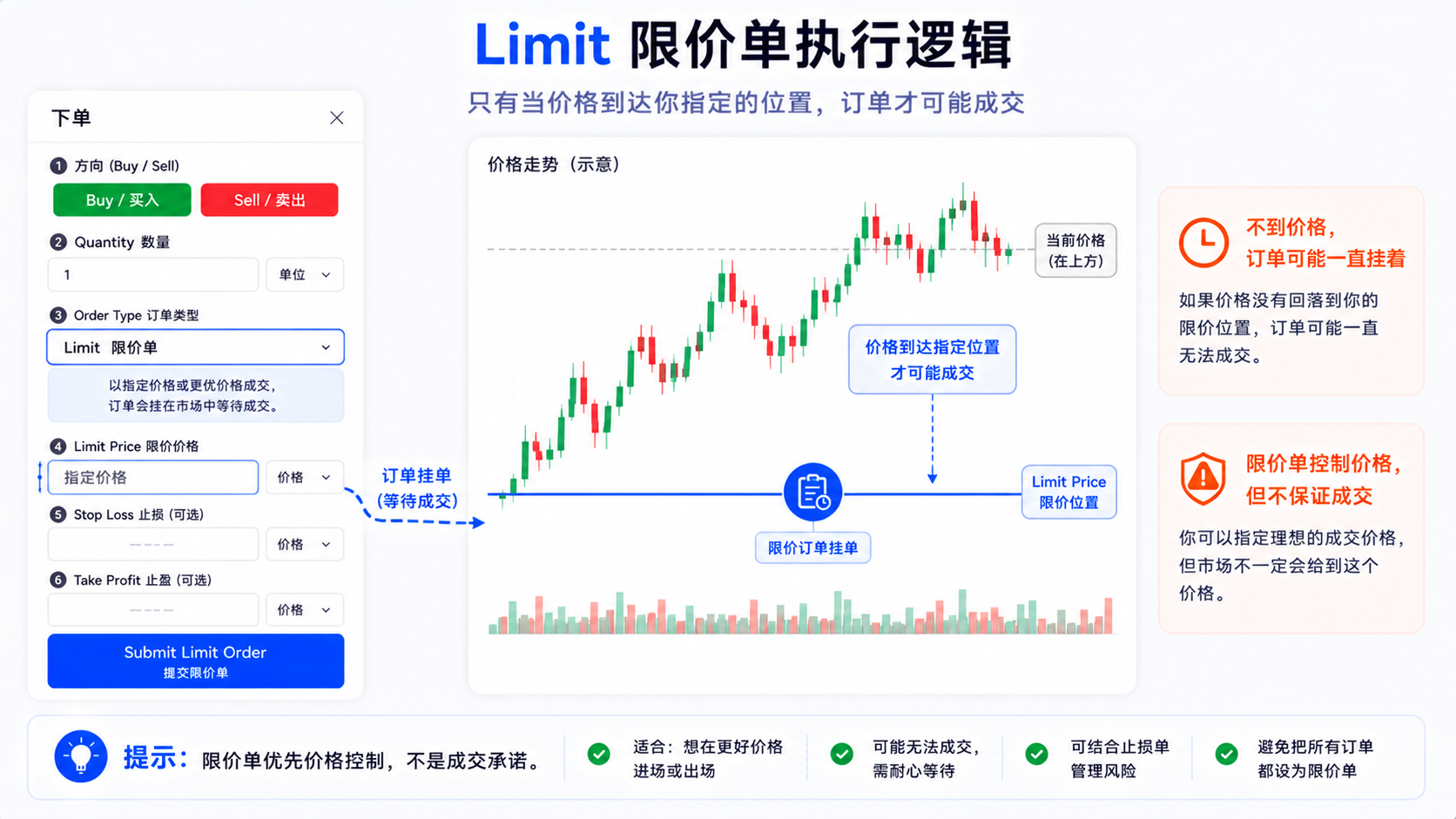
What Does a Limit Order Mean?
A Limit Order specifies the price you're willing to accept: a buy limit usually means buy only at that price or better; a sell limit means sell only at that price or better. The upside is price control, the downside is no guaranteed fill.
"Why didn't my resting order fill?"—the market didn't reach the price, liquidity was insufficient, or your turn in the queue didn't come up, all common. A limit order prioritizes price, not a guaranteed fill.
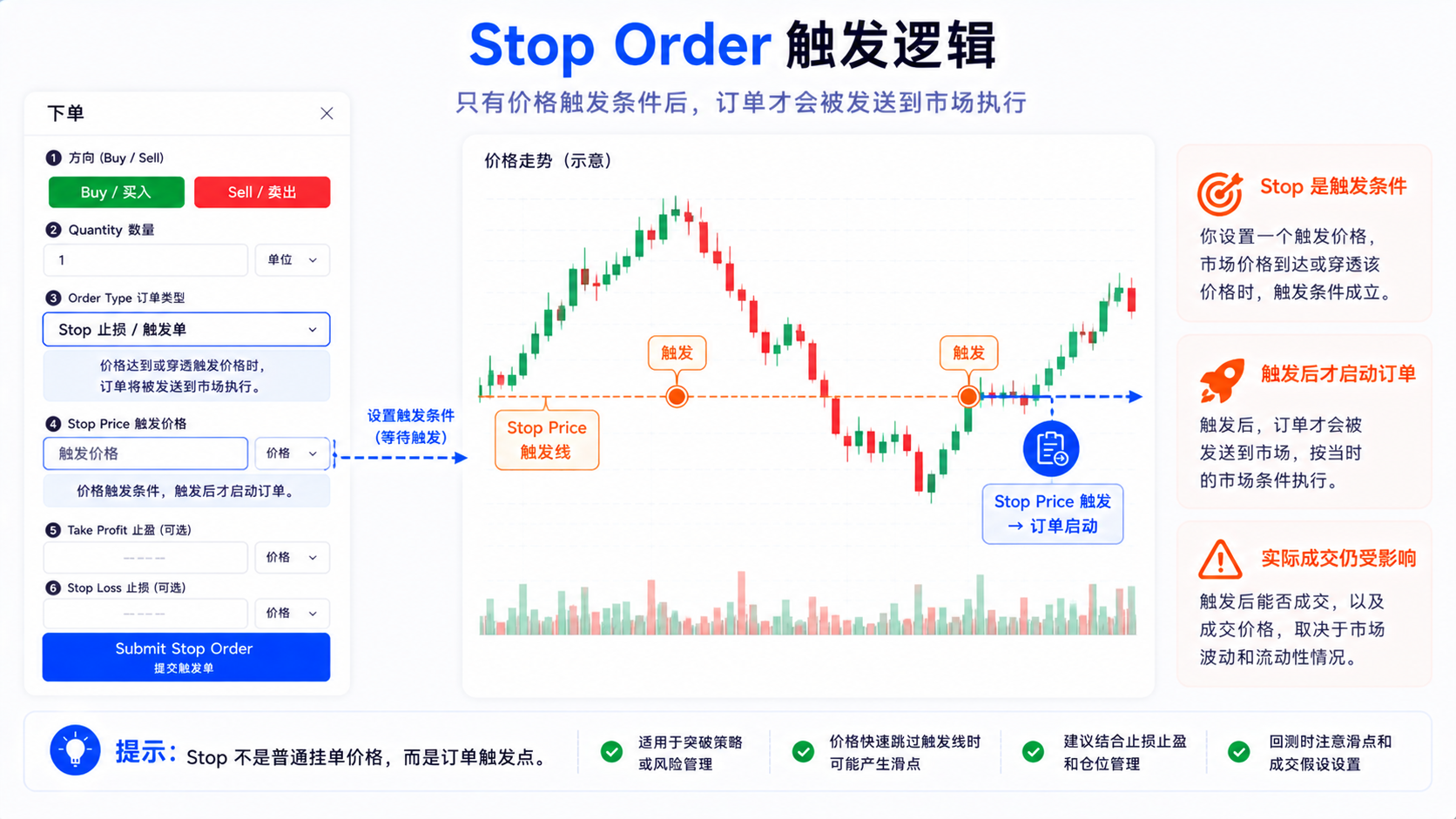
What Does a Stop / Trigger Order Mean?
A Stop is not "buy cheaper" or "sell higher"; it's a trigger condition: the order is only activated after the price reaches the stop price. On many platforms a Stop may become a market order after triggering; a Stop Limit may become a limit order after triggering.
- Limit — accept only that price or better;
- Stop — activate the order after reaching the trigger point;
- Stop Limit — place a limit order after triggering.
A Stop can be used for a stop-loss or a breakout trigger, but it doesn't mean it will fill at the price you entered; on a gap or with insufficient liquidity, the actual fill may be worse.
How to Understand Stop Loss Settings
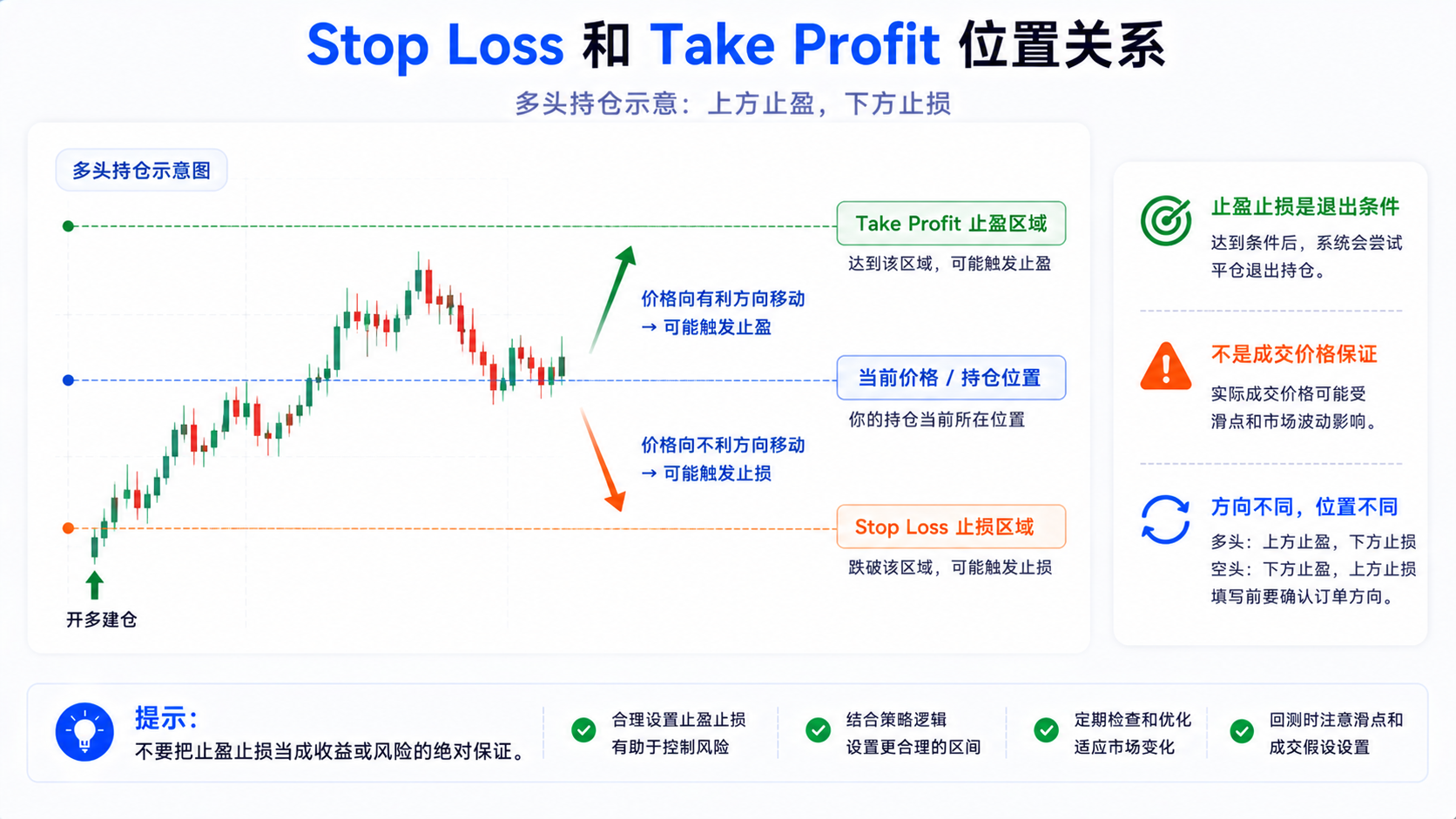
A Stop Loss triggers exit logic when the price moves against you—for example, exiting a long position when the price drops to a certain level.
A stop-loss is not insurance: it sets an exit rule, not a guaranteed fill at the price you entered. When the market gaps past the stop price quickly, the actual fill may be worse—don't read Stop Loss as "I'll lose at most this much".
How to Understand Take Profit Settings
Take Profit sets a target exit when the price moves in your favor, often appearing paired with a Stop Loss.
When Paper Trading supports multi-level take-profit/stop-loss, multiple exit layers often appear as paired Take Profit and Stop Loss, each with its own quantity and price. But take-profit is only an exit condition; it doesn't mean the price will definitely get there, and it's not a return promise.
Can Stop Loss and Take Profit Be Added to Every Order?
Not necessarily. Support differs by account, broker, and order type.
Help notes mention: in some cases a market order can't place Stop Loss / Take Profit at the same time; adding them to individual positions may be unavailable, or handled as linked OCO orders. Some brokers (e.g. Tradovate-related notes) only allow adding them when placing an order in the order panel, and it may not be possible to add them to an already-placed order or an existing position.
What you can do in Paper Trading isn't necessarily identical in a real broker account—follow the broker's rules.
What's the Difference Between Paper Trading and Real-Account Orders?
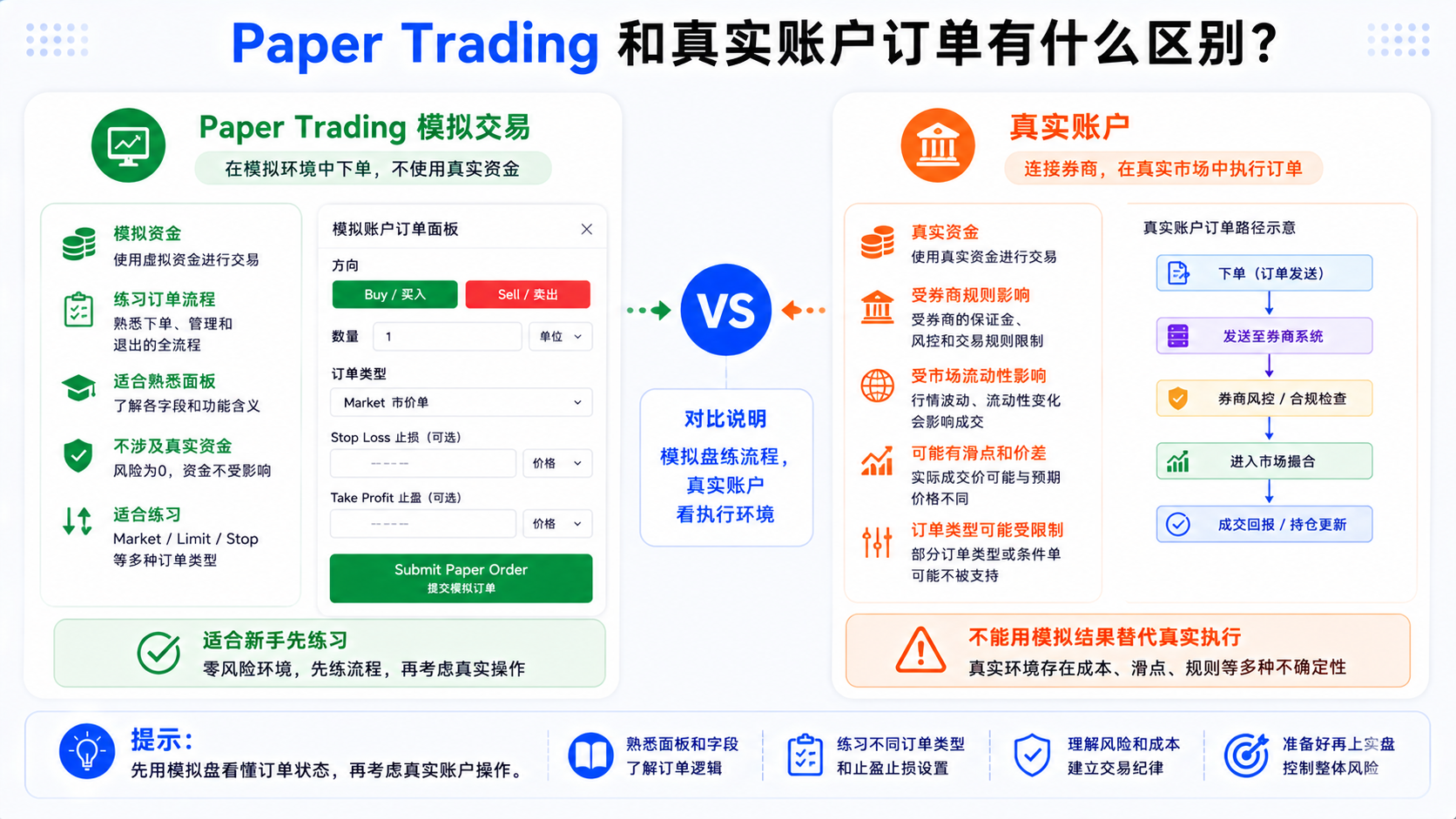
Paper Trading is good for practicing panel fields, order-type differences, take-profit/stop-loss, placing/canceling resting orders, and position and order status.
A real account is also affected by broker rules, exchange matching, liquidity, the bid-ask spread, real slippage, extended-hours limits, account permissions, the range of order types, network latency, and risk control. The demo trains the process, not proof that you're ready for real trading. If you can't even read order status, you shouldn't rush to place real orders.
Common Misconceptions: Why Beginners Feel Orders "Won't Obey"
Misconception 1: A Market Order Always Fills at the On-Screen Price
A market order prioritizes speed; with high volatility or wide spreads the fill may deviate from the chart price.
Misconception 2: A Limit Order Always Fills
If the price isn't reached or volume is insufficient, it may keep resting.
Misconception 3: A Stop Loss Always Protects at the Entered Price
After triggering, the actual fill is still affected by market conditions.
Misconception 4: Filling Stop-Loss/Take-Profit Backwards
Long and short directions differ; a wrong entry may be un-submittable or behave oddly.
Misconception 5: The Demo Is Exactly Like a Real Account
The demo trains the process; real execution must also consider the broker and liquidity.
Misconception 6: Clicking Trade in a Hurry
Before confirming, check direction, quantity, type, price, stop-loss/take-profit, and whether you're in the demo.
A Safe Practice Flow for Beginners
- Use Paper Trading first — watch market fills, limit resting orders, Stop triggers, take-profit/stop-loss, and cancellations;
- Use a small quantity — easier to understand the logic without being distracted by big numbers;
- Practice one type at a time — Market today, Limit tomorrow, then Stop and brackets;
- Read it once before ordering — Buy/Sell, Market/Limit, quantity, price, stop-loss/take-profit direction, and whether it's the demo;
- Watch order status — submitted, filled, partially filled, unfilled, canceled, rejected, triggered, resting;
- Review your practice — why it filled/didn't, whether the fill matched expectations, whether Limit reached the price, whether the Stop trigger matched expectations, and whether stop-loss/take-profit were reversed.
A Simple Comparison: How to Understand Order Types
| Order type | Priority | Possible issue | Beginner takeaway |
|---|---|---|---|
| Market | Fill as fast as possible | Possible slippage | Fill fast, price not guaranteed |
| Limit | Specified price or better | May not fill | Want this price, wait if not reached |
| Stop | Trigger at a price | Fill price may differ after trigger | Activates only after the trigger point |
| Stop Loss | Exit on the adverse side | No exact price guarantee | Sets a risk exit condition |
| Take Profit | Exit on the favorable side | Price may not reach it | Sets a target exit condition |
The table isn't to pick an order for you, but to know what problem each order solves.
Summary: The Order Panel Isn't a Button to Click Casually
Market prioritizes fill speed and may slip; Limit prioritizes price and may not fill; Stop is trigger logic; Stop Loss and Take Profit are exit conditions, not absolute guarantees of return or risk.
Beginners should first use Paper Trading to master direction, quantity, type, price, stop-loss/take-profit, and order status, then consider whether to connect a real account. Don't click confirm blindly before you understand the logic.
FAQ
What's the difference between a market order and a limit order in TradingView?
A market order prioritizes filling as soon as possible, and the fill price may differ; a limit order prioritizes price and fills only at that price or better, but isn't guaranteed. Practice each in Paper Trading first.
Is a TradingView Stop Order a stop-loss?
A Stop can be used for a stop-loss or a trigger order; the core is activating after reaching the trigger point. A Stop may become market, a Stop Limit may become limit, and neither guarantees a fill at the entered price.
Will my Stop Loss always fill at the price I set?
Not necessarily. It's a trigger condition; on gaps, insufficient liquidity, or sharp volatility, the actual fill price may differ.
Are orders in Paper Trading the same as in a real account?
Not exactly. The demo trains the process; a real account is also affected by the broker, matching, liquidity, spread, and permissions.
Why is my Stop Loss / Take Profit option unavailable?
It may relate to the order type, broker, account, or position. Some market orders can't attach stop-loss/take-profit; some brokers only allow adding them when placing the order. Follow the current rules.