Alerts · Beginner
TradingView Alerts Not Coming Through? Fix Phone Push and Email Notifications
Many people think they've set an alert in TradingView, the price hits, the indicator is satisfied—yet the phone stays silent. It may not be that there's no alert, but that the phone didn't allow it to notify you. A safer order is: first confirm whether the alert fired, then check whether it was delivered to your phone or email. Alert triggering and notification delivery are two different things.
Bottom Line First: Confirm the Trigger, Then Check the Notification Channel
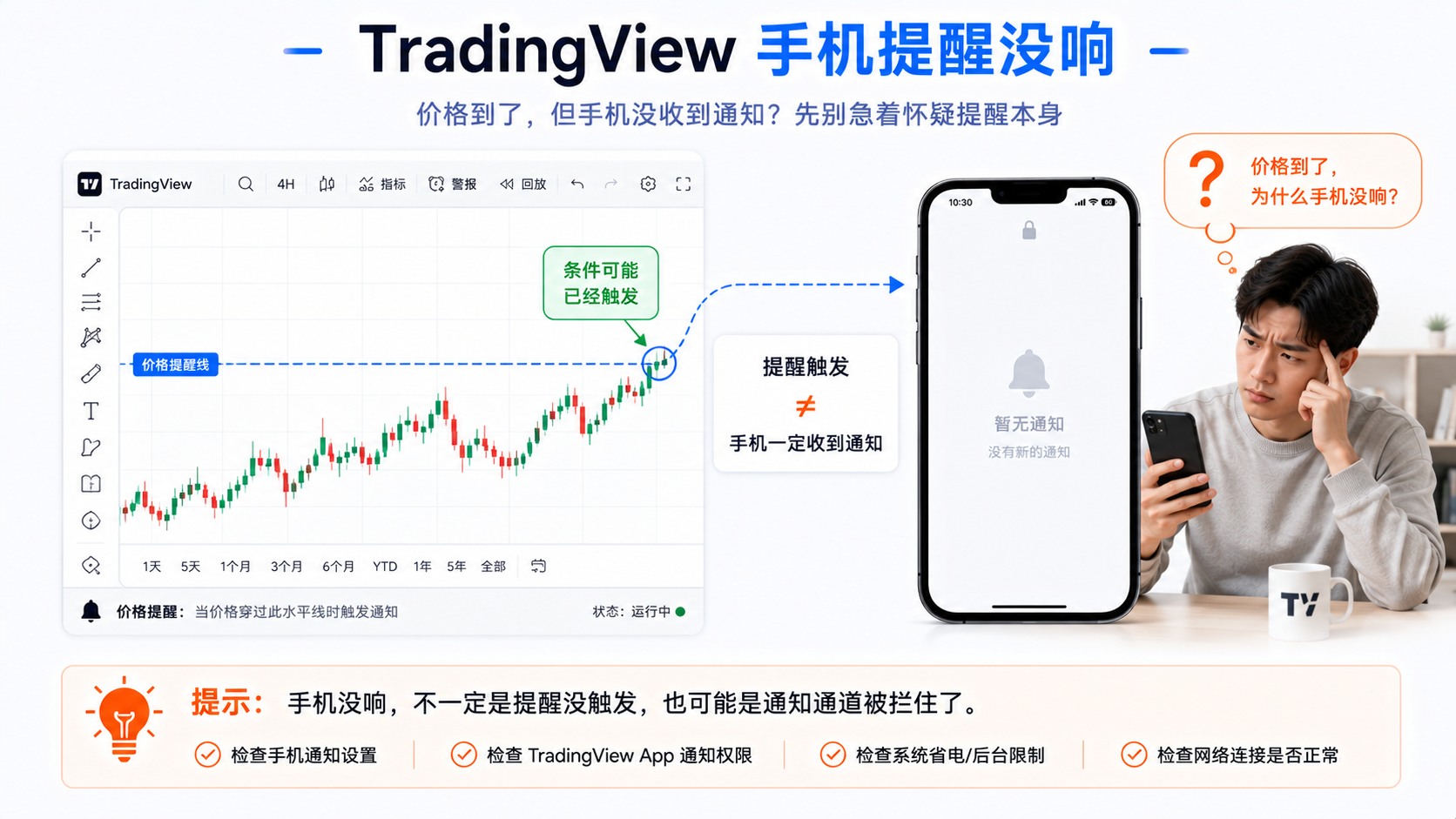
Missing phone alerts commonly fall into two categories:
- The alert didn't fire: the condition was set wrong, the timeframe is inconsistent, it expired, or the price hit but the condition wasn't met.
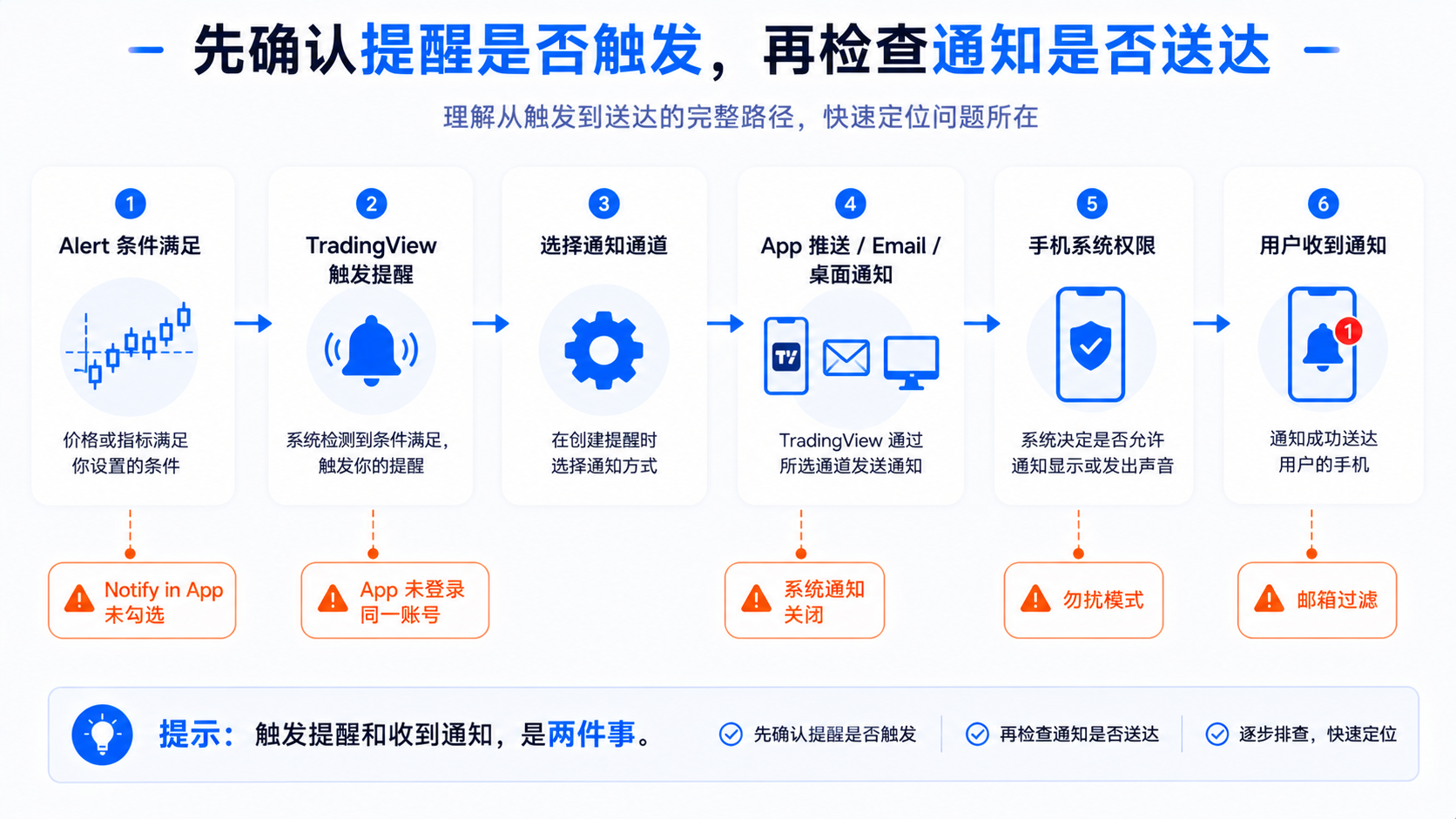
- It fired but the channel has a problem: the app isn't installed, the account doesn't match, Notify in App isn't checked, system notifications are off, Do Not Disturb, Android background limits, or email landing in spam.
Self-check in order:
- Did this alert actually fire?
- Did you choose App or Email when creating it?
- Is the app installed and logged into the right account?
- Does the system allow TradingView push?
- Is it Do Not Disturb, low power, or background-limited?
- Is email filtered, delayed, or in spam?
Official docs usually require: download the latest app, log in, allow push, and check Notify in App when creating an alert. See the Alerts Manager guide to learn how to view trigger status.
What Ways Can a TradingView Alert Notify You?
An alert isn't only phone push; common methods include:
- App notification / Notify in App;
- Email;
- Webhook URL (see the webhook guide);
- Desktop pop-up;
- Sound alert;
- In-chart or in-page notification.
Beginners most often use app push (timely) and email (for records). Note: triggering doesn't mean every channel notifies you—only the methods you checked when creating it will be used.
What Conditions Must Phone App Push Meet?
- Install the latest TradingView app — not installed or too old a version may affect push.
- Log into the correct account — if the computer is account A and the phone is account B, alerts created on the computer won't push to phone B. Always verify with multiple accounts.
- Allow system push permission — both iOS/Android need TradingView notifications allowed in system settings.
- Check Notify in App when creating the alert — the easiest step to miss; the alert may have fired in the Alerts Manager yet the phone still stays silent.
- The app isn't background-limited — Android power-saving mode especially blocks background and push.
How to Troubleshoot iOS Notification Permissions
Step 1: Confirm the App Is Logged Into the Right Account
Open the app to verify it's the same account as on the computer; if unsure, log out and back in.
Step 2: Check iOS Notification Permissions
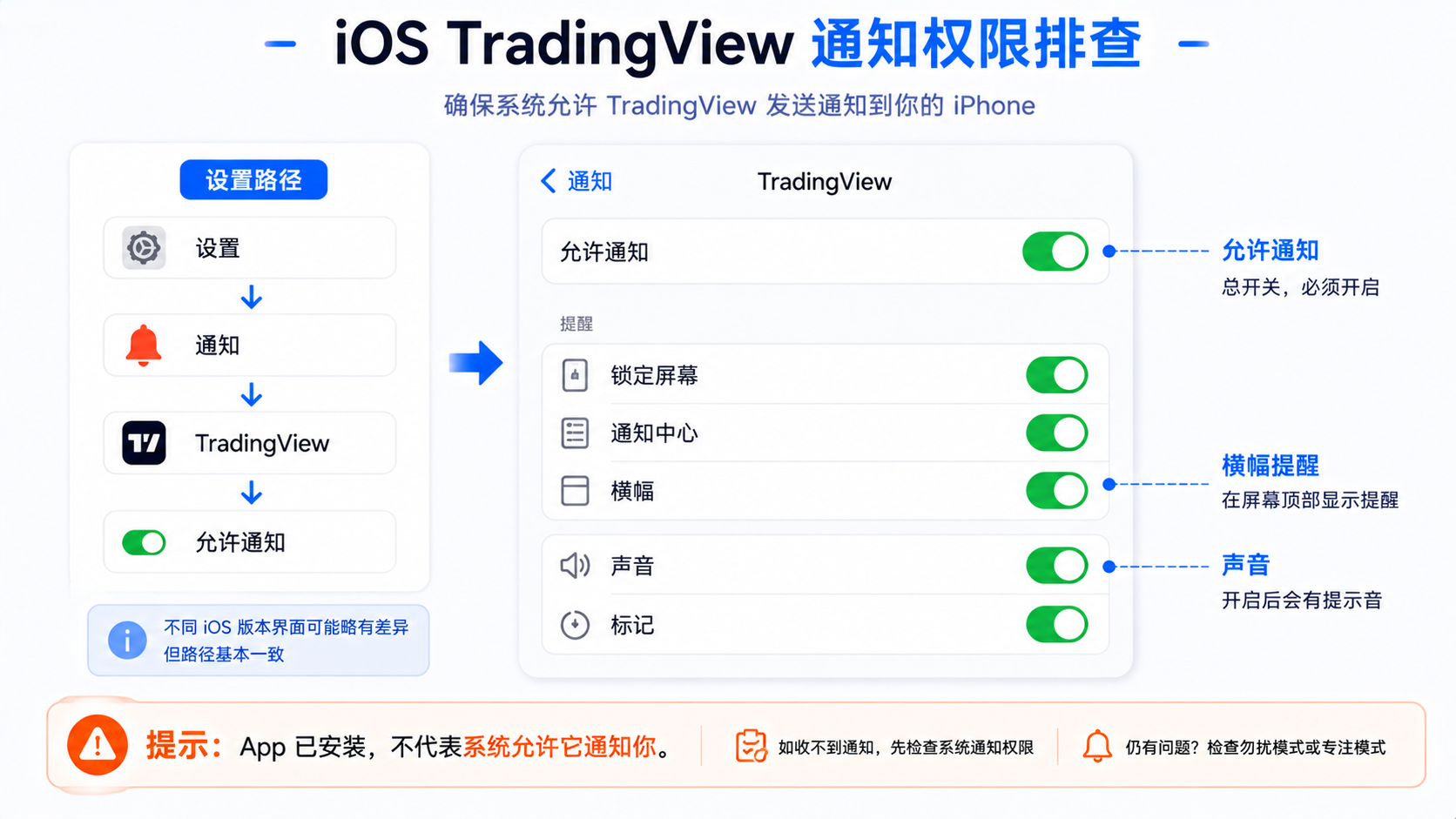
The path is usually: Settings → Notifications → TradingView, confirming:
- Allow Notifications;
- Lock Screen, Notification Center, Banners;
- Sound (as needed);
- Badges (as needed).
Step 3: Check Focus / Do Not Disturb
Check Do Not Disturb, Sleep, and Work Focus; whether TradingView is allowed to notify; and whether notifications are silently delivered to a summary.
Step 4: Log Back Into the App
If permissions are all correct but you still get nothing, log out of the app, log back in, and test.
How to Troubleshoot Android Notification Permissions
Step 1: Confirm the App Notification Permission
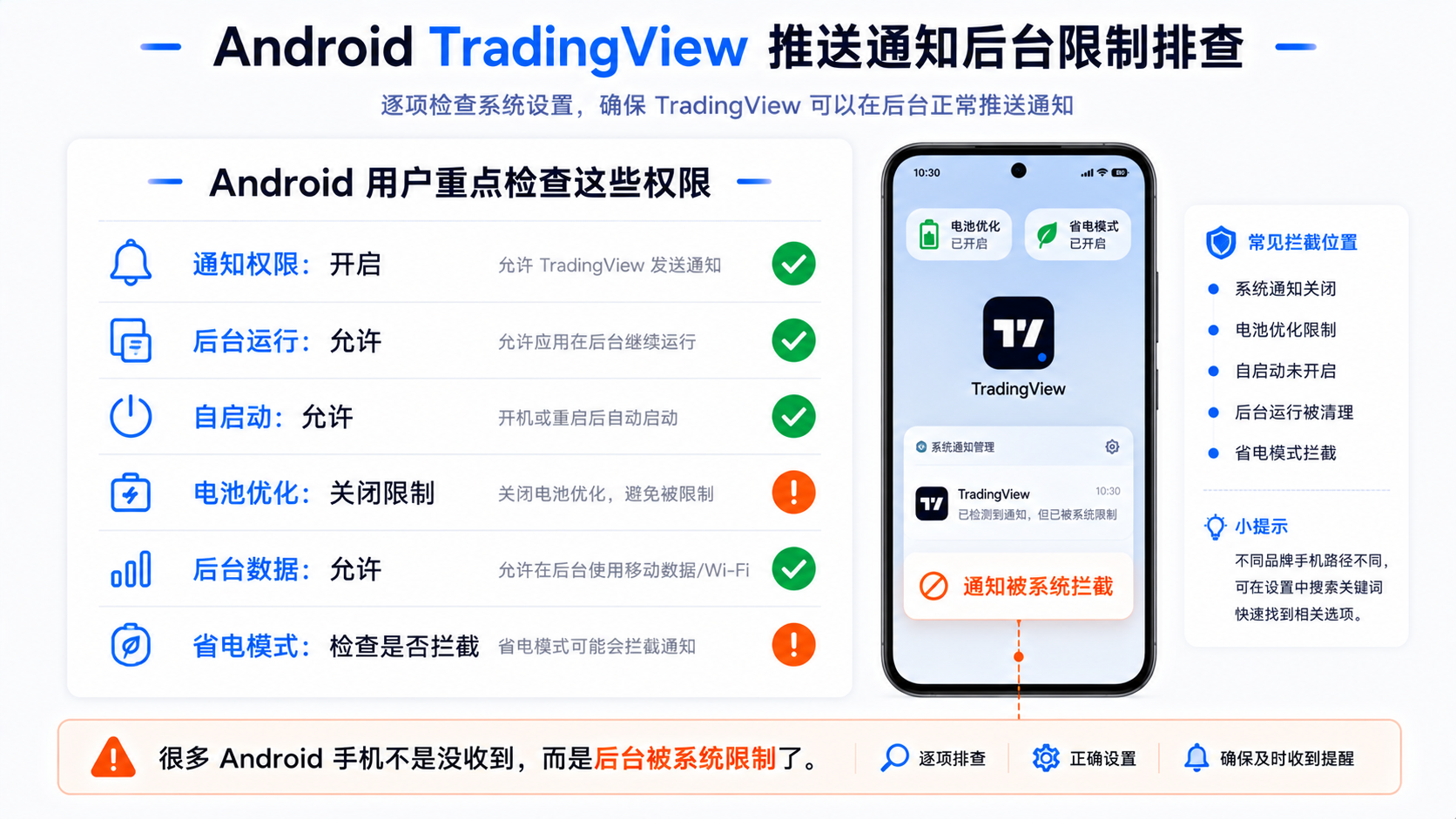
Usually Settings → Apps → TradingView → Notifications, confirming it isn't turned off.
Step 2: Check In-App Push Settings
Some devices need push notifications enabled separately in the TradingView app settings.
Step 3: Battery Optimization and Background Limits
Check whether background running, autostart, background data, and ignoring battery optimization are allowed, and whether it's restricted by a sleeping-apps feature or phone manager.
Step 4: Autorun / Autostart
Some systems need TradingView added to the autostart allowlist.
Step 5: Network and Data Limits
If mobile network gets nothing but Wi-Fi does, check mobile data, background data, data saver, VPN, or network filtering.
Why Check Notify in App When Creating an Alert?
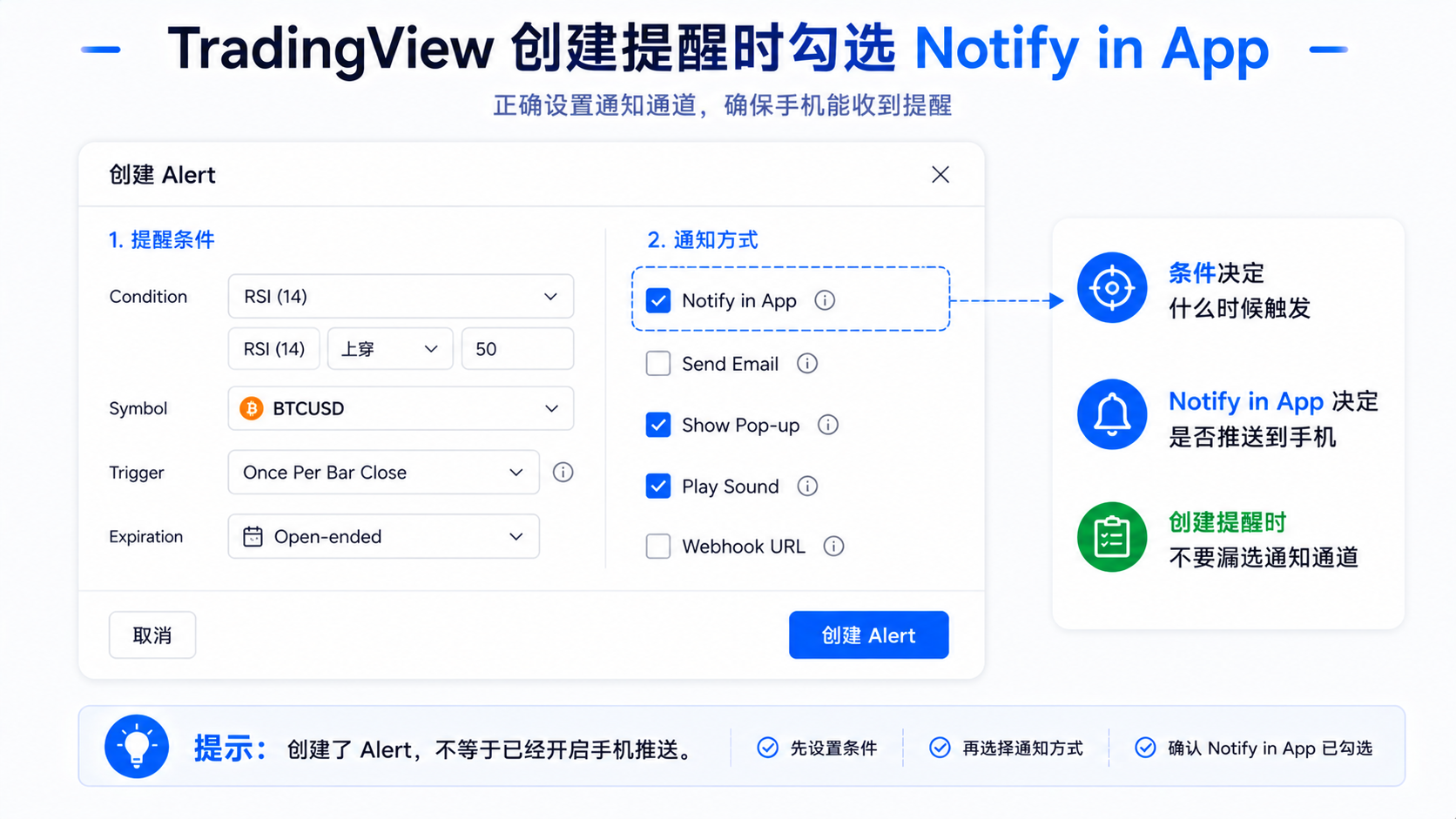
The condition decides "when it triggers"; the notification options decide "how it tells you after triggering". Without Notify in App checked, the alert may only show on the web or only use other checked channels.
Every time you create an alert, check whether Notify in App, Email, Webhook, Pop-up, Sound, and Message are ticked as needed. When creating from the computer, it's especially easy to fill in only the condition and skip the notification options.
Possible Reasons You're Not Getting Email Alerts
- Email not checked — if not selected at creation, no email is sent.
- Wrong email address — emails usually go to the address in profile settings; verify the bound address if you changed emails or use third-party login.
- Spam / promotions — check spam, promotions, and subscription folders and rules.
- Blocked by filter rules — search TradingView, alert, notification to see if it was archived.
- Delay — email isn't as instant as the app; when timeliness matters, use the app first, email as a backup.
- Backup email not verified — after adding a backup email in Settings and billing → Alerts delivery, you must enter the 6-digit confirmation code.
System Do Not Disturb, Low Power, Background Limits, and Network Issues
Do Not Disturb
Getting nothing at night but fine by day, or nothing during meetings—check Do Not Disturb, Sleep, Focus, notification summary, and silent notifications first.
Low Power Mode
It may limit background activity; when it's unstable at low battery, temporarily turn off low power mode to test.
Background App Refresh
If you don't open the app for a long time, the system may lower its background priority.
Unstable Network
No network, latency, VPN anomalies, and campus/company network limits can all affect push.
The App Hasn't Been Opened for Too Long
Open the app regularly to confirm login and push permission; this sometimes fixes intermittent issues.
A Checklist From TradingView to the Phone System
Troubleshoot in order, don't skip around. Verify with a simple test alert, and remember to delete it afterward.
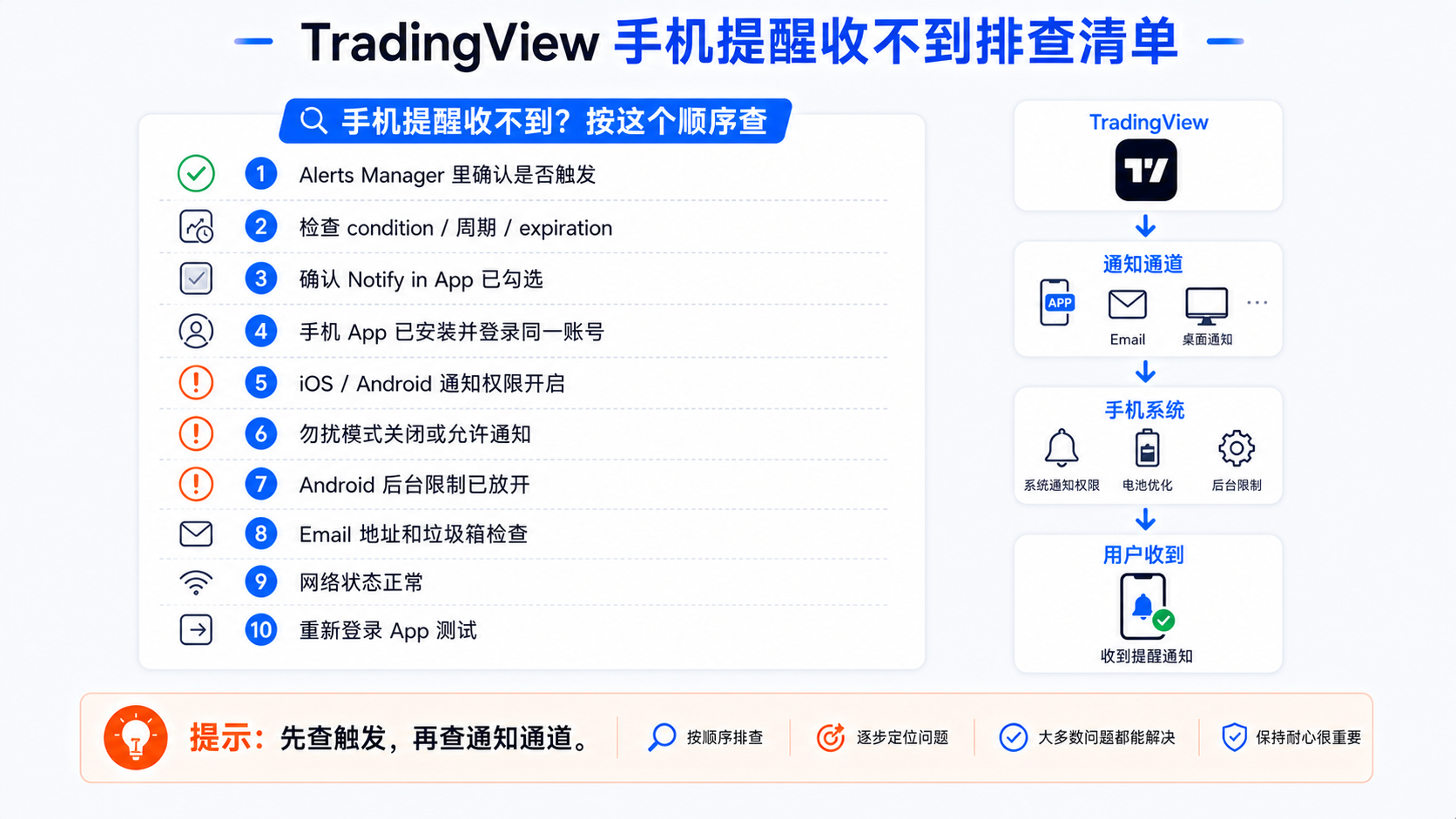
| Step | What to check |
|---|---|
| 1 | Did the alert actually fire — view status and records in the Alerts Manager |
| 2 | Is the condition correct — symbol, timeframe, condition, trigger, expiration |
| 3 | Is Notify in App checked |
| 4 | Is the latest app installed |
| 5 | Are phone and computer the same account |
| 6 | Do iOS / Android allow notifications |
| 7 | Are Do Not Disturb, Focus, or Sleep on |
| 8 | Android background, autostart, battery optimization |
| 9 | Is Email checked and the address correct |
| 10 | Spam and filter rules |
| 11 | Wi-Fi, mobile data, VPN |
| 12 | Log out of the app, log back in, and test push |
If the alert didn't fire, also cross-check the timeframe and condition settings; an inconsistent timeframe is one common cause.
A Safer Alert-Notification Habit
- Use dual channels for important alerts — app for timeliness, email for records; don't dual-channel everything to avoid a cluttered inbox.
- Write a clear Message — e.g.
BTC | 4H | RSI crossing above 50 | go back to the chart to check price structure and volume, not a buy/sell signal - Clean up old alerts regularly — see the alerts manager guide.
- Don't rely on a single notification method — important alerts can have a backup channel, but avoid overload.
Summary: A Silent Phone Doesn't Mean the Alert Didn't Fire
Don't rush to rebuild the alert. Open the Alerts Manager to see if it fired; if not, check the condition, timeframe, trigger, and expiration; if it did, check Notify in App, app login, system permissions, Do Not Disturb, Android background, email, and network.
Many issues aren't TradingView failing to alert, but the notification not reaching the phone, or the phone not allowing it to disturb you. Alerts help you go back to the chart to check changes—they aren't trading advice or an automated trading system.
FAQ
My TradingView phone alerts aren't coming—what do I check first?
First confirm in the Alerts Manager whether it fired. If not, check the condition, timeframe, trigger, and expiration; if it did, check Notify in App, the app and login, system permissions, Do Not Disturb, and Android background.
Do I have to install the app for TradingView phone push?
You need the latest app installed, logged in, push allowed, and Notify in App checked at creation. Follow the official docs.
Why doesn't my phone ring even though I created an alert?
Common causes are Notify in App unchecked, system notifications off, Do Not Disturb, Android background limits, or account mismatch. Confirm the trigger first, then check the channel.
What if I'm not getting TradingView email alerts?
Confirm Email is checked and the bound address is correct, and check spam and filters. A backup email must complete code verification.
Why is TradingView push intermittent on my Android phone?
Common causes are battery optimization, background limits, autostart, background data, or notification permission being off. Check push permission, allowlists, and battery optimization.